Make an AI-assisted sizzle video for your project
A sizzle video creates interest quickly. It can be more expressive than a step-by-step demo, but it still needs a clear connection to what you actually made. Start with real project footage, use a short visual story, and add generated or animated elements only when they make that story easier to understand.
What you’ll take away
- Plan the story before generating clips or motion graphics.
- Keep real product footage as the evidence for product claims.
- Choose an editing route that matches the assets and future updates.
Give the video one memorable idea
For a fictional rhythm game, the idea might be “turn your break into one satisfying round.” For an interactive map, it could be “see a familiar place differently.” State the idea in a sentence, then choose a visual sequence that proves it. A list of six unrelated features rarely becomes more compelling when cut to music.
Write a short asset inventory: actual interface recording, gameplay, a logo you own, a title, a result screen and any music or voice assets. Note what is missing. Do not start by generating a pile of cinematic footage with no role in the story. That tends to produce a handsome montage with an unclear product.
Use Opus 5.5 for a production brief
Ask Opus 5.5 to help write the hook, shots, on-screen text and edit notes. Give it the real product description and available footage. State which features are working, which are planned and which claims are prohibited. Its output is a draft to check against the actual project, not evidence that every suggested shot can be recorded.
A prompt to adapt
Select and copy this brief, then replace the details with your own.
Plan a 30-second launch video for a real browser rhythm game. Working features: choose one track, play a one-minute round, and see a score. Available assets: real gameplay recording, title screen, score screen and owned logo. Make a shot list with duration, source asset, crop, on-screen text and audio notes. Open with the game in action, show one clear result, and end with the project URL. Mark any proposed generated atmospheric shot as illustrative. Do not invent multiplayer, user counts, testimonials or mobile support. Include a muted-viewing version and editable deliverables.Choose how to assemble the video
Use the simplest route that gives you control over timing, text and the final export. You can mix routes, but record which assets came from where and keep the edit reproducible. Check current product access and licensing before spending time on a tool-specific workflow.
For Remotion, use the current official agent skills rather than an unverified copied skill. The documented installation command is npx skills add remotion-dev/skills. Installing guidance does not include music rights, generation credits or permission for every commercial use. Review the relevant licenses.
Scroll to see all columns →
| Route | Useful when | Keep an eye on |
|---|---|---|
| Record and edit | The real product is already visually interesting | Readable capture, clean cuts, captions and truthful timing |
| Remotion with a coding agent | You want reusable text, layouts and animated overlays | Previewing each scene, editable code, export and license eligibility |
| Higgsfield-assisted assets | An atmospheric or illustrative shot adds meaning | Generation consistency, rights and clear separation from real product proof |
| Human editor plus recorded footage | You want judgment and an efficient finishing pass | A clear brief, source assets, revision scope and final editable files |
Let generated assets support the actual project
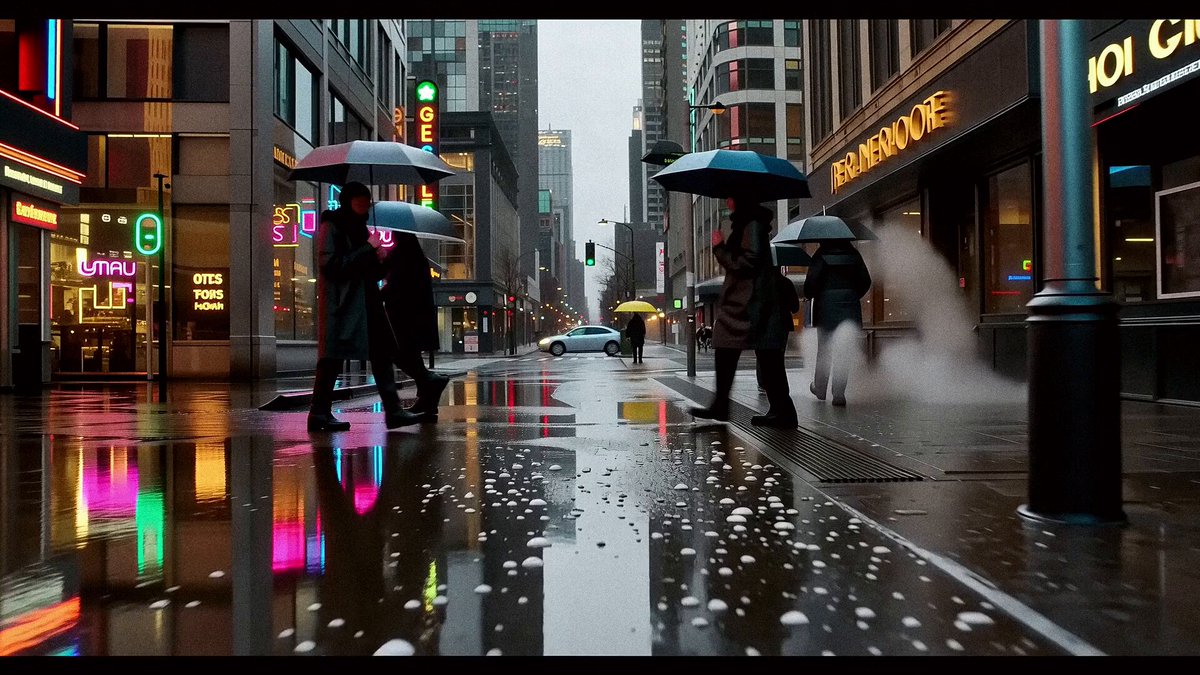
An illustrative shot can establish a mood or explain an abstract idea. It should not stand in for nonexistent gameplay, a fabricated customer or an interface the product cannot produce. If a shot could reasonably be mistaken for a real feature, label it or replace it with authentic footage. Show the actual product early enough that the viewer knows what is being offered.
Riley Brown’s public Remotion example demonstrates editable animated overlays exported and layered onto recorded speech. Use that as a workflow reference, with credit. Our hook, storyboard and review steps are editorial suggestions; they are not a documented proprietary Riley Brown system or an endorsement.
Claude Motion is a separate current beta for eligible Team and Enterprise users that creates code-driven animations and exports MP4. It is not a realistic-footage generator. Check access if you want that route, and do not conflate it with using Opus to plan a Remotion composition.
Export for the place people will watch
Create a horizontal version for the site or a video page and a deliberately composed vertical version for mobile feeds. Keep titles away from platform overlays and do not crop away the button or result that explains the shot. Review with the sound off: the viewer should still understand the project and next action.
Check music and voice permissions, captions, pacing and the final URL. Watch the exported file rather than relying on an editor preview. Deliver the script, shot list, asset credits, source recording and editable project along with the video. Those files let you change a price, interface or URL later without guessing how the launch video was made.
Before you move on
- The video communicates one specific idea.
- Real footage supports every product capability shown.
- Illustrative/generated shots are not presented as live product proof.
- Text and crops work in each actual export.
- Music, voice and visual rights are recorded.
- The editable project and asset list are saved with the final files.
Sources
Official documentation and original sources used for this guide. Product features and availability can change; check the linked source before choosing a plan or publishing.
- Claude Opus 5.5 anthropic.com
- Remotion skills remotion.dev
- Remotion licensing remotion.dev
- Higgsfield Academy higgsfield.ai
- Riley Brown’s Remotion workflow linkedin.com
- Claude Motion support.claude.com