How to use CHIMERA and run the vocal synth locally
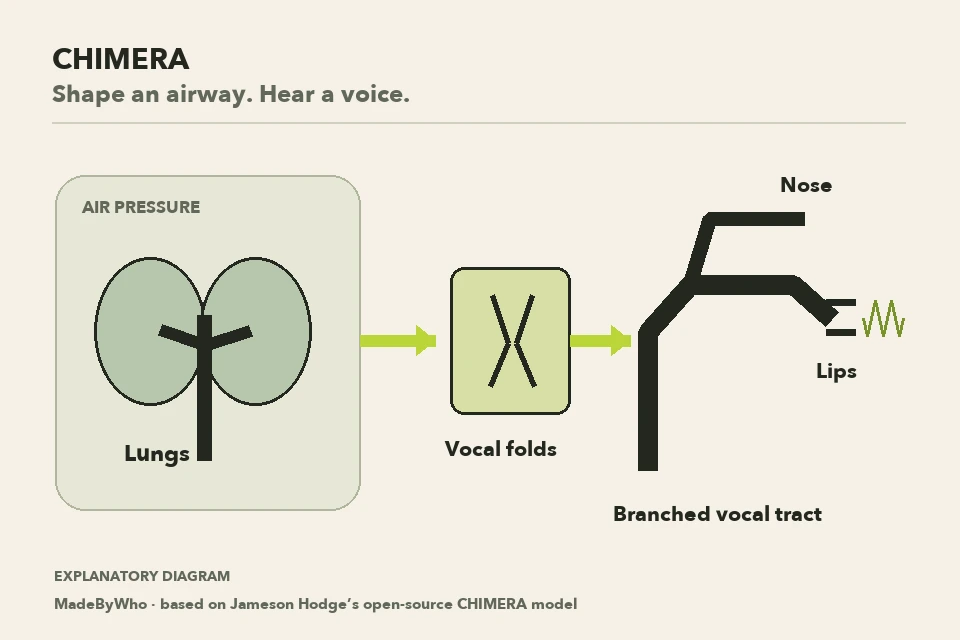
CHIMERA turns a simulated airway into a musical instrument. You can start in the browser with no installation, move a tongue or jaw to shape the sound, and give the model words or notes. This guide takes you from the first audible vowel to a local copy of the open-source project. Start with a low volume and use an original phrase while you learn.
Watch and hear CHIMERA
Turn sound on to hear the synthesizer. Captions are available.
CHIMERA by Jameson Hodge. Grok-assisted editorial by MadeByWho, using credited creator excerpts and fresh renders from the CHIMERA engine.
- Jameson’s original CHIMERA demonstration
- Jameson explains the physical model
- Haruna808’s CHIMERA singing experiment
- María Aroca Vidal’s CHIMERA chorus experiment
Video transcript
This voice is made from moving air. Jameson Hodge built CHIMERA, a physical-modeling synthesizer you can play in your browser.
It simulates an airway: pressure drives vocal folds, and the shape of the throat, tongue and lips changes the sound. Listen to three fresh examples: vowels, a spoken phrase, and an original melody.
[CHIMERA engine: vowel shapes a, i, u; original spoken phrase; original melody.]
Open CHIMERA and press Start Audio. Drag the tongue, try Speak, or move to Sing and play the keys. The project is open source. Find the demo, our how-to and setup guide, and the GitHub link on MadeByWho.
Hear the engine
Fresh CHIMERA engine renders made for this guide. Start at a low volume; choose each sample to hear it.
Shape a vowel
Three vowel shapes rendered directly by the deployed CHIMERA engine.
Speak an original phrase
An original sentence synthesized by the CHIMERA engine, without recorded voice samples.
Sing an original melody
An original six-note melody and five-word phrase rendered with CHIMERA.
Physical synthesis by Jameson Hodge’s open-source CHIMERA engine. These are offline engine renders, not recordings of a live browser interaction.
What you’ll take away
- Start the browser demo and hear how changing the airway changes a vowel.
- Use the speech, singing, beatbox and animal controls without confusing synthesis with a recorded voice.
- Install the source with Git, Bun and Rust, or render a genuine WAV through the native CLI.
Start with one sound in your browser
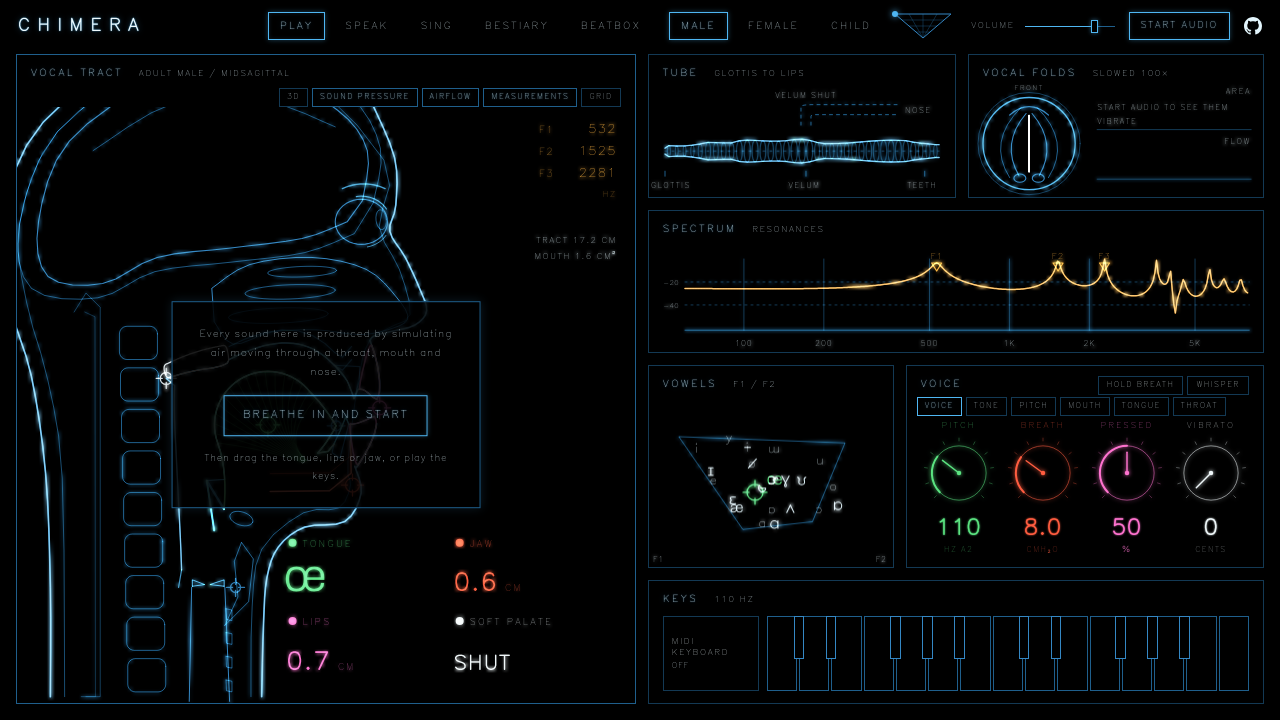
Open the original CHIMERA demo over HTTPS. Start with your system and app volume low, then click Start audio. In Play mode, the large Breathe in and start prompt initializes the engine and holds its breath on. The model needs that explicit start before you should expect sound.
Drag the tongue, lips or jaw in the head cutaway. Try the vowel pad, the on-screen keys or your computer keyboard. Change one thing at a time and listen to the result: a different airway shape changes the resonances of the voice. The Male, Female and Child choices change the body model; they do not load a recording of a person.
- Open the original demo and choose Play.
- Click Start audio or Breathe in and start.
- Hold a note and drag one articulator, then try a different vowel.
- Compare the body choices at a comfortable output level.
Speak an original phrase
Choose Speak and leave Text is IPA off for ordinary English. Type a short phrase such as “Hello from Chimera.” Click Speak; Stop ends the phrase and Rate changes its delivery speed. Command+Enter or Control+Enter also triggers speech from the text box on desktop.
The English route uses a pronunciation dictionary with a letter-to-sound fallback to turn words into timed gestures. It can sound synthetic or uneven: naturalness is something the creator is still improving. This is a physical voice synthesizer, not a promise of voice cloning or a supported language for every text you can paste.
For phonetics work, Text is IPA accepts phonetic input. The consonant chart lets you try a selected consonant between vowels. Use that mode deliberately; ordinary spelling and IPA are different inputs.
Sing your own words with the keys
Choose Sing. Start and hear a song plays the first built-in example, Made of air, which the source identifies as an original tune for this instrument. A demo-song chip can start a named example; tapping the active chip stops it.
To try your own words, type in Lyrics and play the on-screen, computer or MIDI keys. Each new note advances to the next syllable. Hold one key while starting the next for legato. Choose a syllable chip to begin there, or use From the start to reset the lyric position. Without words, the keys sing an “ah” vowel.
A lone hyphen between words holds the previous vowel across another note; a hyphen within a word can split it explicitly. Experiment with vibrato, breathiness, ring and brightness after you have a simple phrase working. This guide does not assume a drag-and-drop melody editor or a browser WAV-export button.
Try a beat or an animal call
Beatbox supplies example beats, pads and an editable step pattern. Use Play beat and Stop to control the sequence, then alter one step and hear what changes. The pattern permits one sound per step; the keys can add a humming bass note.
Bestiary includes a songbird, seal, alligator and elephant. Choose a creature and a call, or use Sustain and the keys to shape a held pitch. These are alternative physical vocal models. A demonstration of one mode does not establish that every animal or control will behave the same on every device.
When sharing a recording, keep the source and composition clear. Your original phrase or melody is a useful first example. A source-code license is not a license to copy someone else’s song recording.
If the picture moves but there is no sound
First check that you clicked a start control and that the app, browser tab and system output are not muted. Confirm the selected output device, particularly if headphones, Bluetooth or an external audio interface are connected. Keep the volume low while changing settings.
The audio engine needs a secure browser context. Use the hosted HTTPS demo or localhost/127.0.0.1 for a local build. Plain HTTP on an ordinary network address is not the documented AudioWorklet route. If the start overlay reports an error, reload and try again.
A heavier physical model can put more pressure on a device than playing a sample. Stop an unused sequence and pause other audio-heavy tabs before testing another mode. Browser and phone compatibility have not been established for every device; a successful desktop session is not a universal support claim.
Set up the source on your computer
For the browser UI you need Git, Bun, Rust/Cargo and Rust’s WebAssembly target. Install Bun and Rust from their official documentation, then run the commands below in a terminal. The inspected workspace uses Rust edition 2024, but does not state an exact minimum Bun or Rust version.
The development command compiles the Rust engine to WebAssembly before starting Vite. Open http://127.0.0.1:5317/ after the terminal reports that it is ready, then use the same Start audio step. The documented setup does not require an API key or a service account.
These commands were checked against the source at commit eed4a5ff2695ad151df2210d012b2a4ab584f099 on November 9, 2026. They are source-verified instructions, not a claim that MadeByWho ran a native installation on your operating system. Check the current README if the project changes.
git clone https://github.com/jamesondh/chimera-vocal-synth.git
cd chimera-vocal-synth
rustup target add wasm32-unknown-unknown
bun install
bun run devBuild, preview and test a local change
Run bun run build for a production build; this compiles the WASM engine, checks TypeScript and creates the Vite output. After a build, bun run preview serves the result on http://127.0.0.1:5318/. Development uses port 5317 and preview uses 5318. Both are strict ports, so an occupied port produces an error instead of silently moving the app.
Run bun run test for the project’s test command: it builds WASM, runs the Rust workspace tests and then the Bun tests. A separate bun run typecheck checks TypeScript. When you change the sound engine, keep a known short phrase or vowel sequence to compare before and after; passing a type check alone does not tell you how a voice sounds.
bun run build
bun run preview

# Run separately when you want the project test suite:
bun run test
bun run typecheck
Render a genuine sound file with the CLI
The native CLI runs the same Rust engine without launching a browser. You need the checked-out repository and Rust/Cargo; this route does not require the WebAssembly target or Bun for the actual native render. Run the command from the repository root so the English pronunciation data can be found.
The first command below writes out/hello.wav from an original English phrase. The vowel command creates a compact sequence of ten vowels. The WAV writer creates missing parent directories, and its default output is mono 48 kHz, 16-bit PCM. Label this output as a native CHIMERA engine render when you use it over diagrams instead of presenting it as a browser recording.
For a custom sung melody, the CLI also accepts a notes JSON file with tempo, lyrics and MIDI-note/duration pairs. Each sounding note needs a corresponding syllable. Read the linked parser before making a longer score; a syllable-count mismatch is a real input error, not a reason to replace the sound with an unrelated voice.
cargo run --release -p chimera-cli -- --help
cargo run --release -p chimera-cli -- render text out/hello "Hello from Chimera." female
cargo run --release -p chimera-cli -- render vowels male out/vowelsBefore you move on
- I can start and stop a sound and know which output device is playing it.
- I can distinguish a real CHIMERA demonstration from a labeled diagram or someone else’s recording.
- I have the original project and GitHub links, and checked current source instructions before installing.
- My shared sample uses original or appropriately licensed words, music and recordings, with creator credit.
Sources
Official documentation and original sources used for this guide. Product features and availability can change; check the linked source before choosing a plan or publishing.
- Original CHIMERA project chimera-vocal-synth.vercel.app
- CHIMERA README at the inspected commit github.com
- Speech controls and IPA behavior github.com
- Singing, lyrics and demo controls github.com
- Beatbox controls github.com
- Animal models and calls github.com
- Package scripts github.com
- Development and preview ports github.com
- CHIMERA MIT license github.com
- Original Made of air tune in the engine source github.com